For schools
A quarter of an hour, and the class is in
Maths, spelling, grammar, geography and typing, for your whole class. You make a teacher account with your school email address; we know over 5700 Dutch primary schools, so you are usually in straight away. Then you put your class in, and your pupils sign in with a class code and their own card. No email addresses for children, no passwords to reset, nothing to install.
Free while Learnbits is being built. No quote, no sales call.
Live, for real
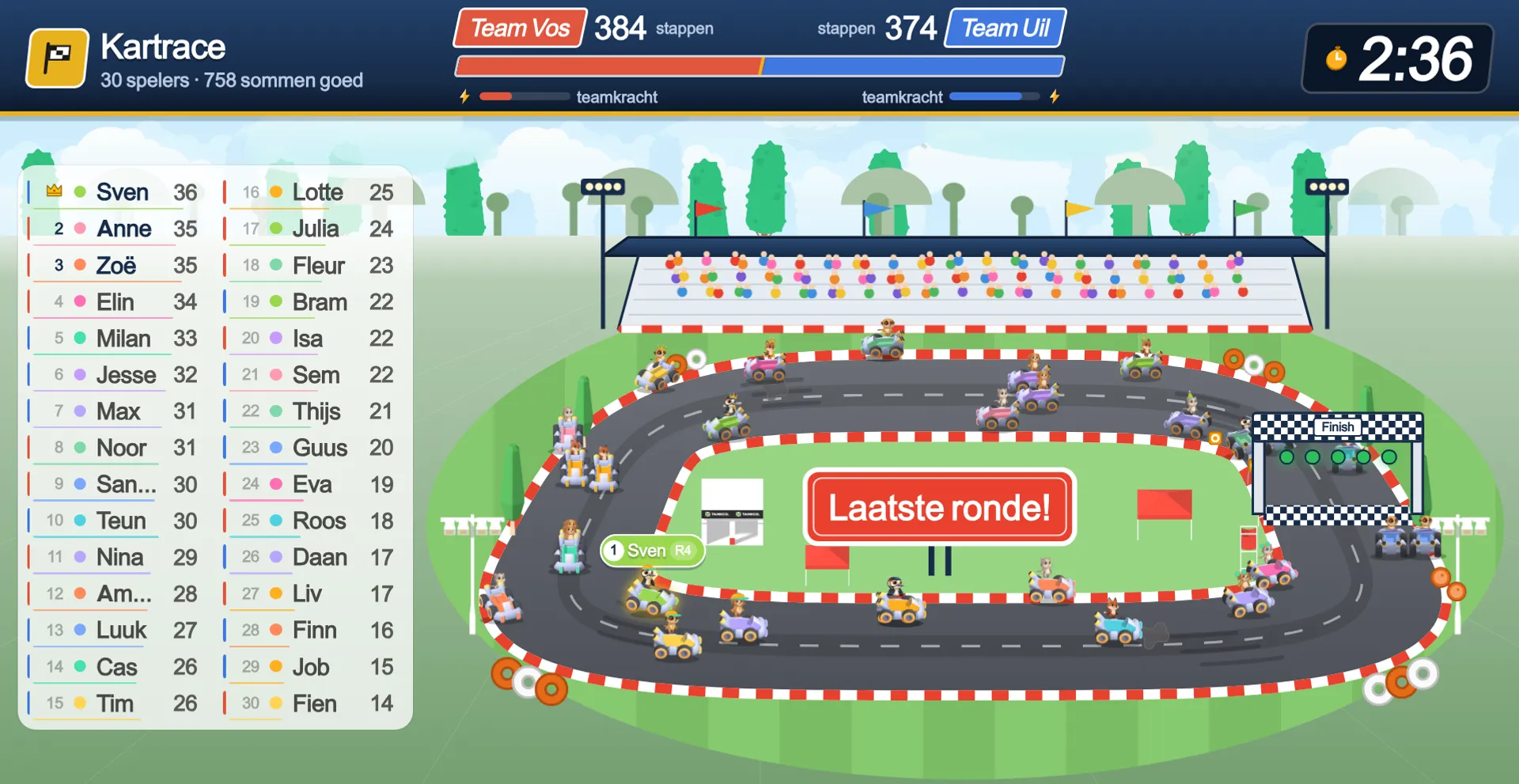
This is what your class sees on the board
Sign in with your school email address, make a class and add your children — and your class plays this tomorrow.
Signing in
Three taps, and a seven-year-old is in
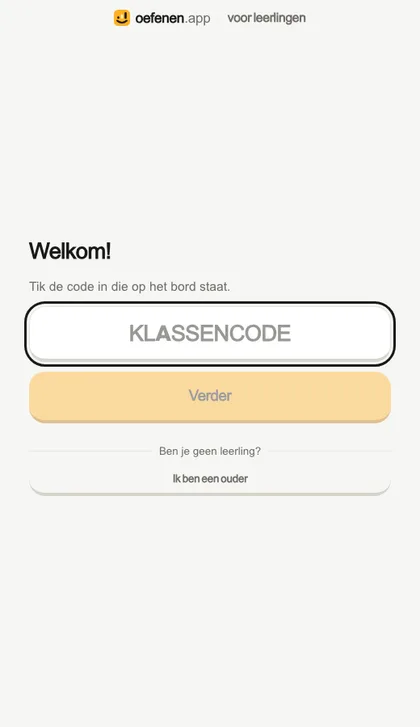
A pupil goes to the address of the subject — maths.learnbits.app — and picks I am a pupil. Then they type the 6-character class code you wrote on the board, tap their own picture and name, and type their own 4-character code. Done.
No email address needed, and no password. A seven-year-old can copy a code off the board and point at their own name; what they cannot do is remember an email address. That is why this is its own door beside the parent’s, rather than the same door with an exception in it.
Shorter still: every class comes with a direct link that carries the class code. Put it on the whiteboard or in the class folder and there is nothing left to type. For the first time, print the password sheet: one card per pupil with the address, the class code and their own code, along a cut line.
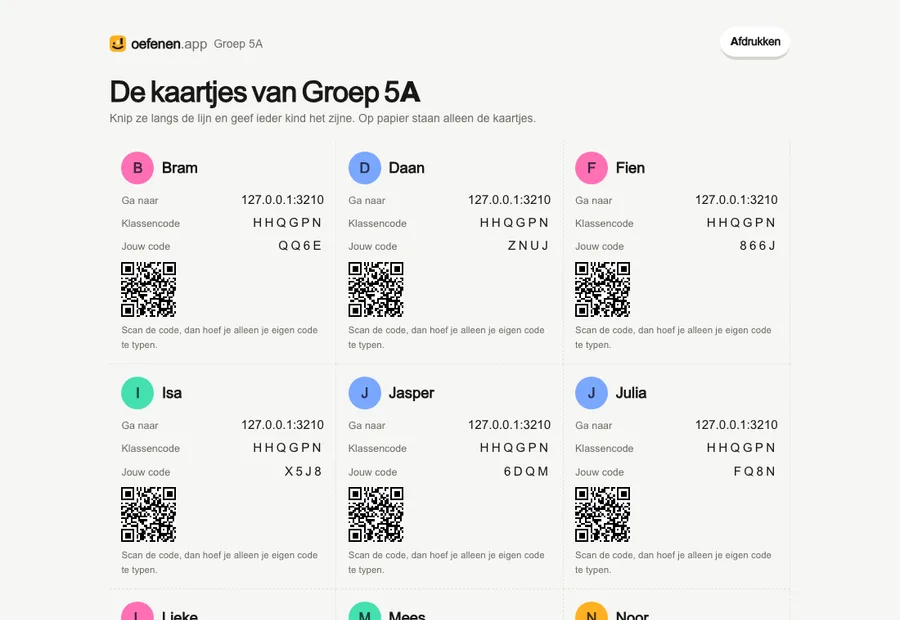
That personal code is protection from classmates rather than a password — we would rather say that plainly than dress it up. What actually guards the account is the class code, the personal code, a counter on failed attempts and, if you want it, the school’s IP address: then signing in only works on the school network. It never applies to you — you prepare your week at home.
If your school uses Google Workspace for Education, pupils can also sign in with their Google school account, and you bring your class over from Classroom in one go. How to switch Google on
The dashboard
Where the class stands, and where this child stands
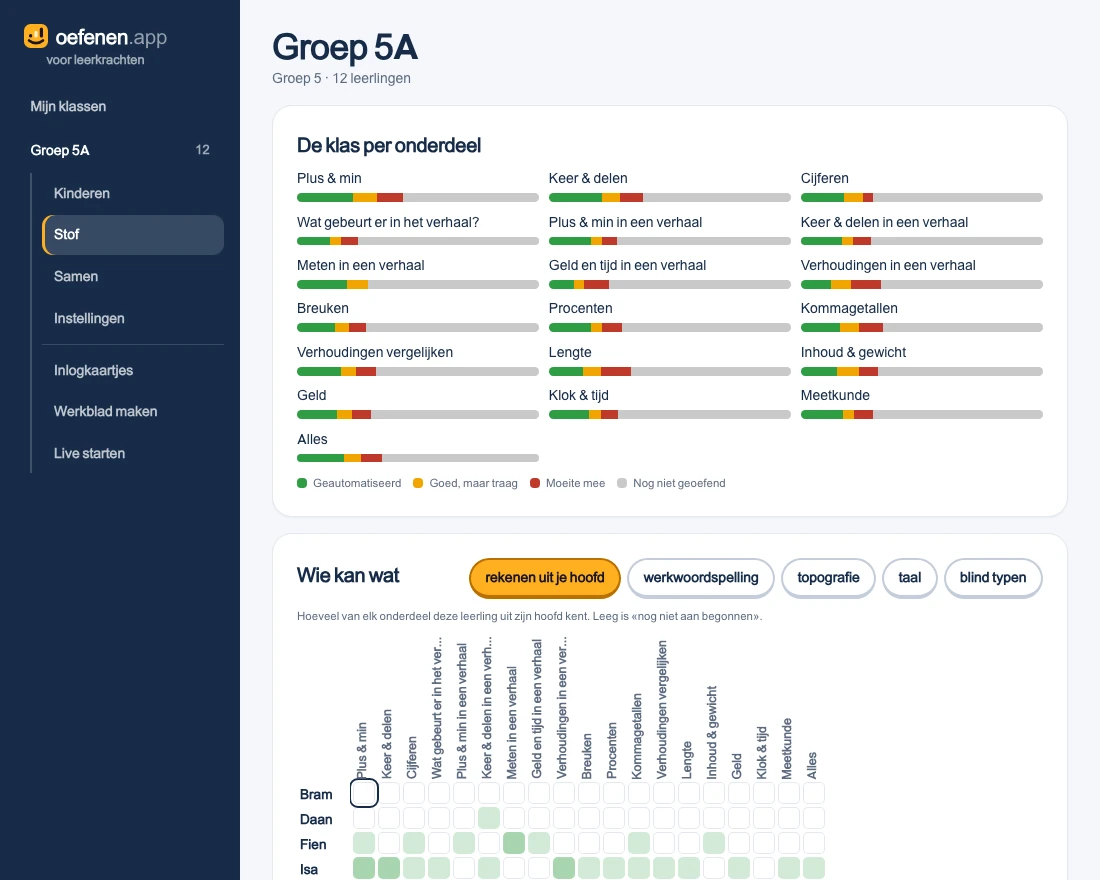
The class screen opens with the question you actually have: per strand — addition, multiplication, telling the time, verbs — where does the class stand as a whole. That cannot be read off thirty rows, so it sits above them.
Below it sits the matrix: every pupil against every strand, one cell per crossing, the colour saying how much of it comes from memory. That is the question you came for and it cannot be read off a list — and an empty cell means “not started yet”, not “going badly”.
Below that, one row per pupil with their bar, their percentage and their week: how much they know by heart, how much they can work out, what they struggle with and which days they turned up. Click a pupil and it opens by domain, by strand and by rung, down to the single fact: which table is solid and which is not.
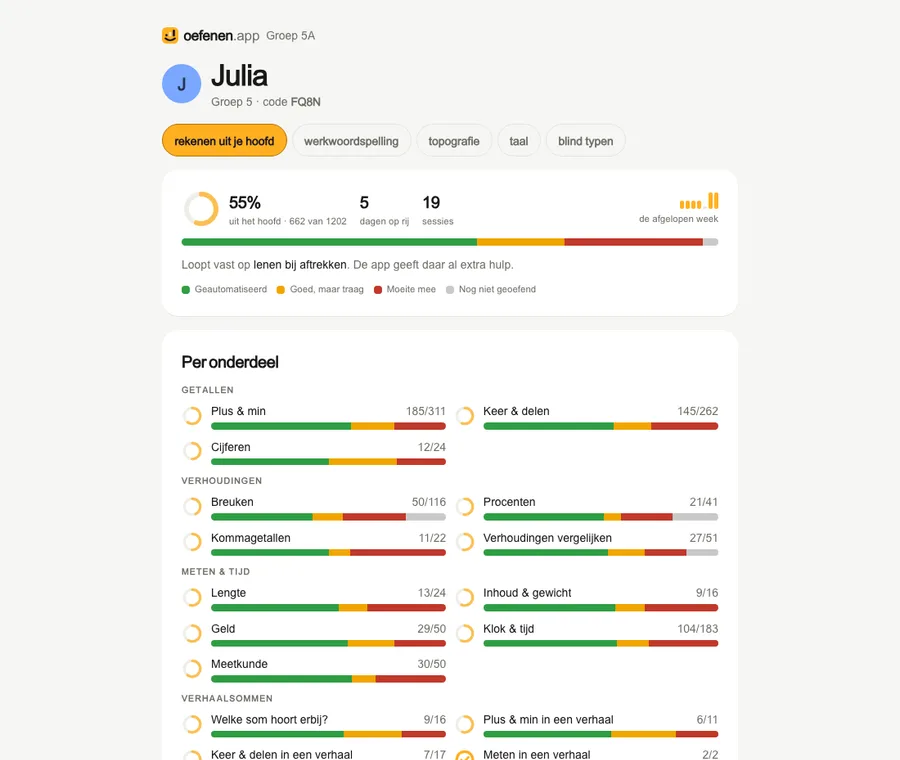
What is not there is a grade, a percentage next to a class average, or a leaderboard. The app measures whether something comes from memory, and that is a different thing from how good a child is.
Settings
Who decides what gets practised
Per class and per pupil you set three things. First who chooses: the child, the app (which picks up whatever is due each day), or you — then you set one assignment and it stays put until you move it.
Second within what, down to the single rung. The subject is laid out as a tree — domain, strand, rung — with a checkbox at every level. Anything you tick is allowed, so “all of Number, plus telling the time” is two ticks. And third the edges: which subjects this class uses, whether there is play after practice, how many sessions a day and how long between them.
A pupil who differs from the class says so on screen, and one button puts them back in step with everyone else. That is the whole support route: you do not need a second class for three children who need something else.
In the classroom
A session is 15 minutes and stops itself
8 min · 2 min · 5 min — practise, review, play. Not a column of twenty sums a child can rattle through, but a clock that pauses when nothing happens and holds still while a worked example is being read.
That fits a quarter of an hour at the start of the day, on the Chromebooks you already have. When a child is finished they tap I’m done and the screen is back on the class code — ready for the next pupil on the same device.
No multiple choice anywhere, never an advert, no chat and no leaderboard. Why it works this way, with sources, is on the evidence page.
Live
Once a week: together on the whiteboard
Set up a game on the board over the material you choose, and every pupil joins in on their own laptop with their own sums, at their own level. A correct answer is always one step for the game — whether the sum was easy or hard — so every child has roughly the same chance. Only then is competition allowed: with items, with luck, with a final lap where the standings can still flip.
The game standing itself disappears once the game ends; what stays sits with the class — a report per child and a class picture per block, never a coin or a rank on the child. How Live works.
Privacy
What is kept about a pupil
A name, a colour, an animal and which facts they know. If they sign in with their Google school account, also that address and their Google ID, only to link them to their place in the class. Nothing else: no photo, no date of birth, no device id, no behaviour outside the practice itself.
The school owns that data, and nothing travels from a pupil to a parent account — not even when that same parent has a subscription at home. Delete a pupil or a class and what belongs to them goes with it.
There is no channel through which children can send anything to each other or to anyone else. The full text is on the privacy page.
At home
And the parents?
A family can use the same product on its own: one account held by the parent, up to 4 children, each with their own animal and their own progress. That is entirely separate from school — a pupil of yours needs none of it, and a child who already uses it at home simply starts again with a school profile.
That is deliberate: letting the two run together would mean you looking into a family’s progress, or a parent looking into your class. For parents carries the whole story from that side.
Try it with one class
You can be up and running before the bell. If it does not fit, delete the class and nothing is left behind.